
Account Migration Guide
Register a Nanami Account
Register a Nanami account. An invite code is required to complete registration. If you don't have one, follow Bilibili live room [30234960] for more help.
Download the Nanami Launcher
Nanami provides a launcher for both EU and Asia regions of Turtle WoW. Download and extract it.
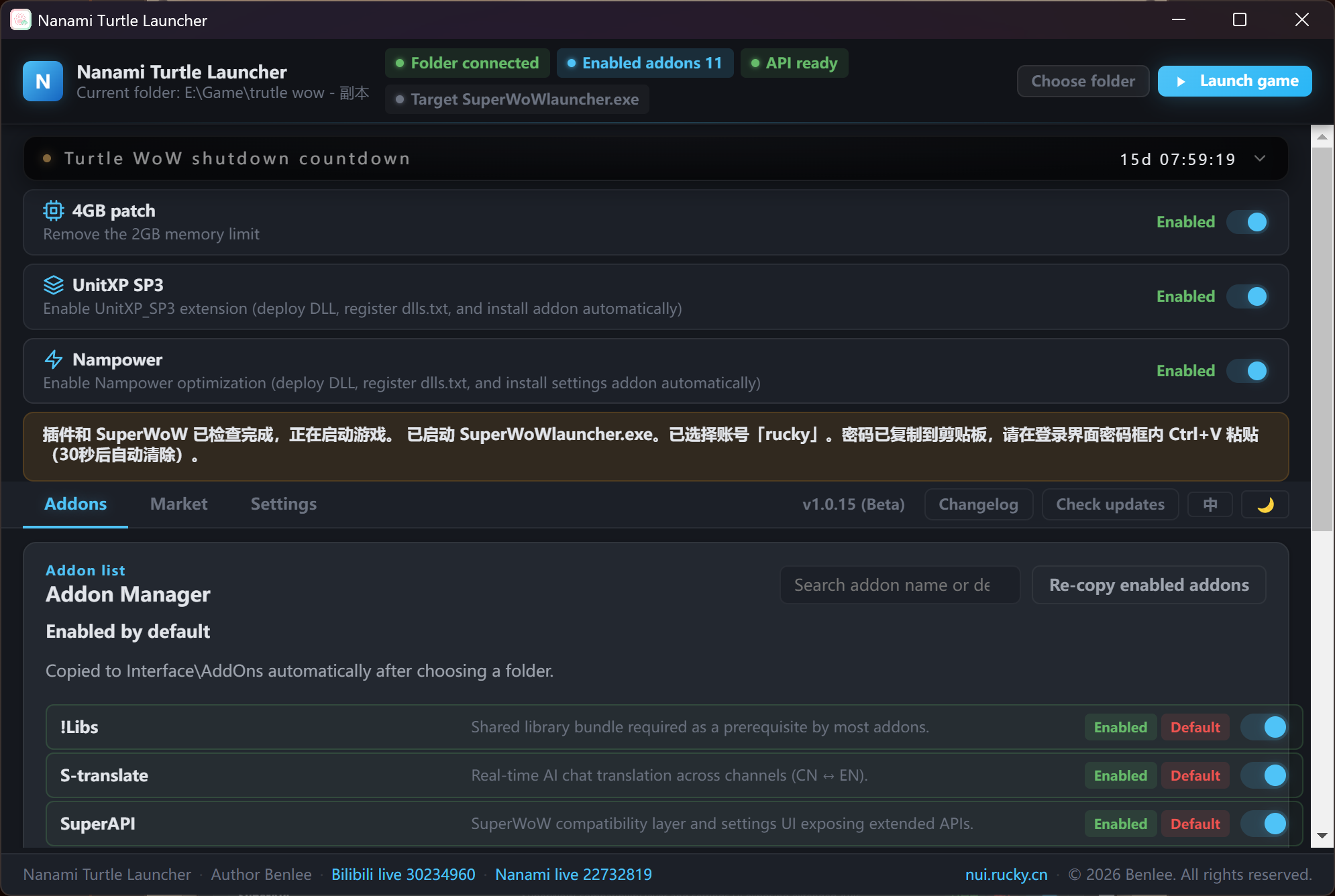
Install and Launch the Launcher
If Windows blocks the installer, choose "Run anyway" to bypass (Figure 1). After the launcher opens, select your Turtle WoW 1.18 root folder.
Launch the Game and Log In
Launch the game, confirm all default addons in the launcher are loaded, then log in with the character you want to back up.
Clear the Mailbox
After logging in, open your mailbox and clear all mail before backing up — mail and its attachments are not included in the backup. Retrieve any important items into your bags first.
Open the Backup Window
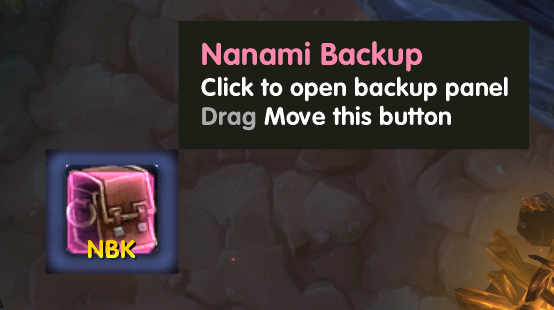
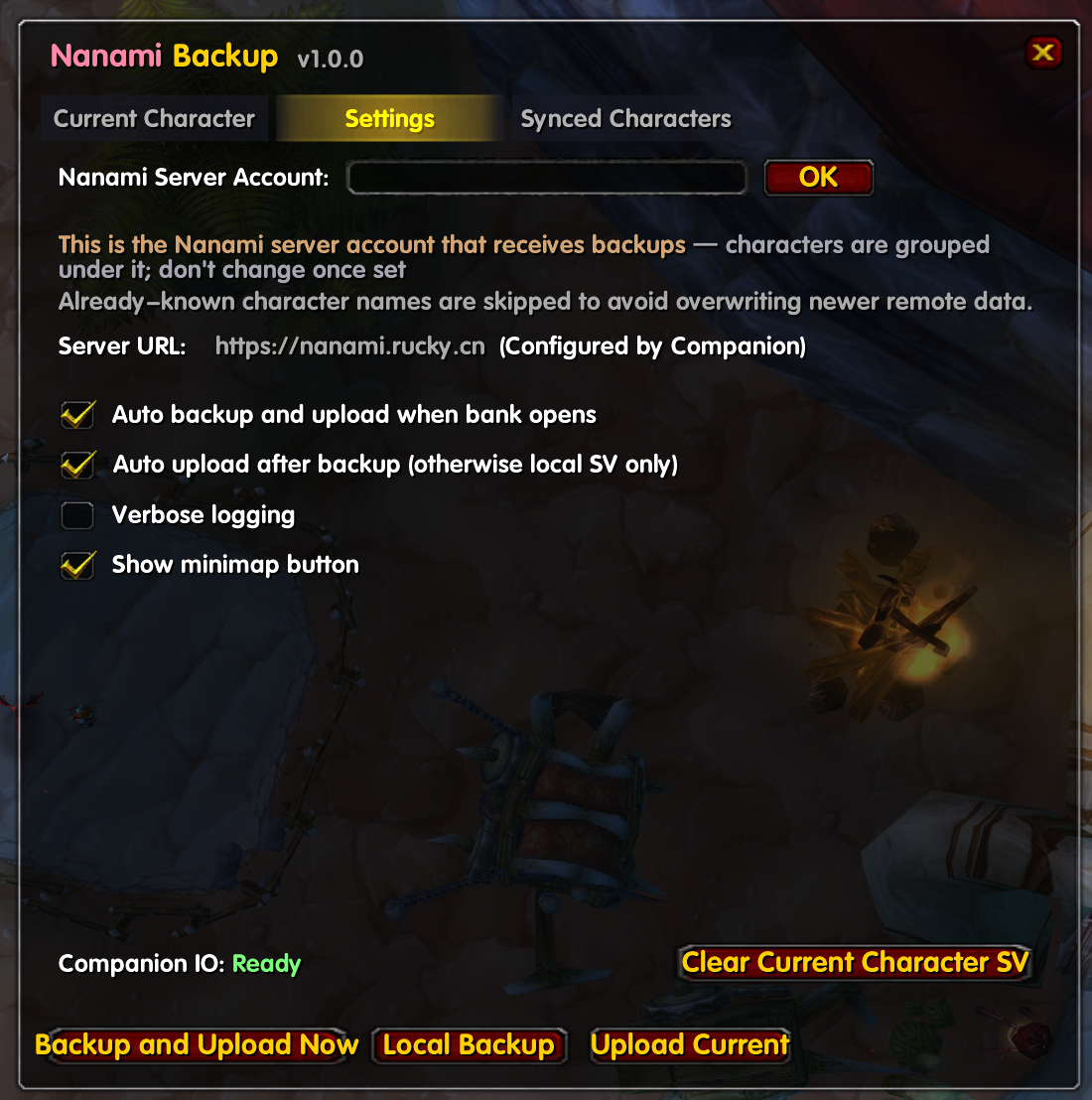
Click the NBK icon next to the minimap (Figure 2) to open the backup window, then switch to the "Settings" tab (Figure 3). Enter the Nanami account you registered in Step 1.1 and click "OK".
Review Character Info
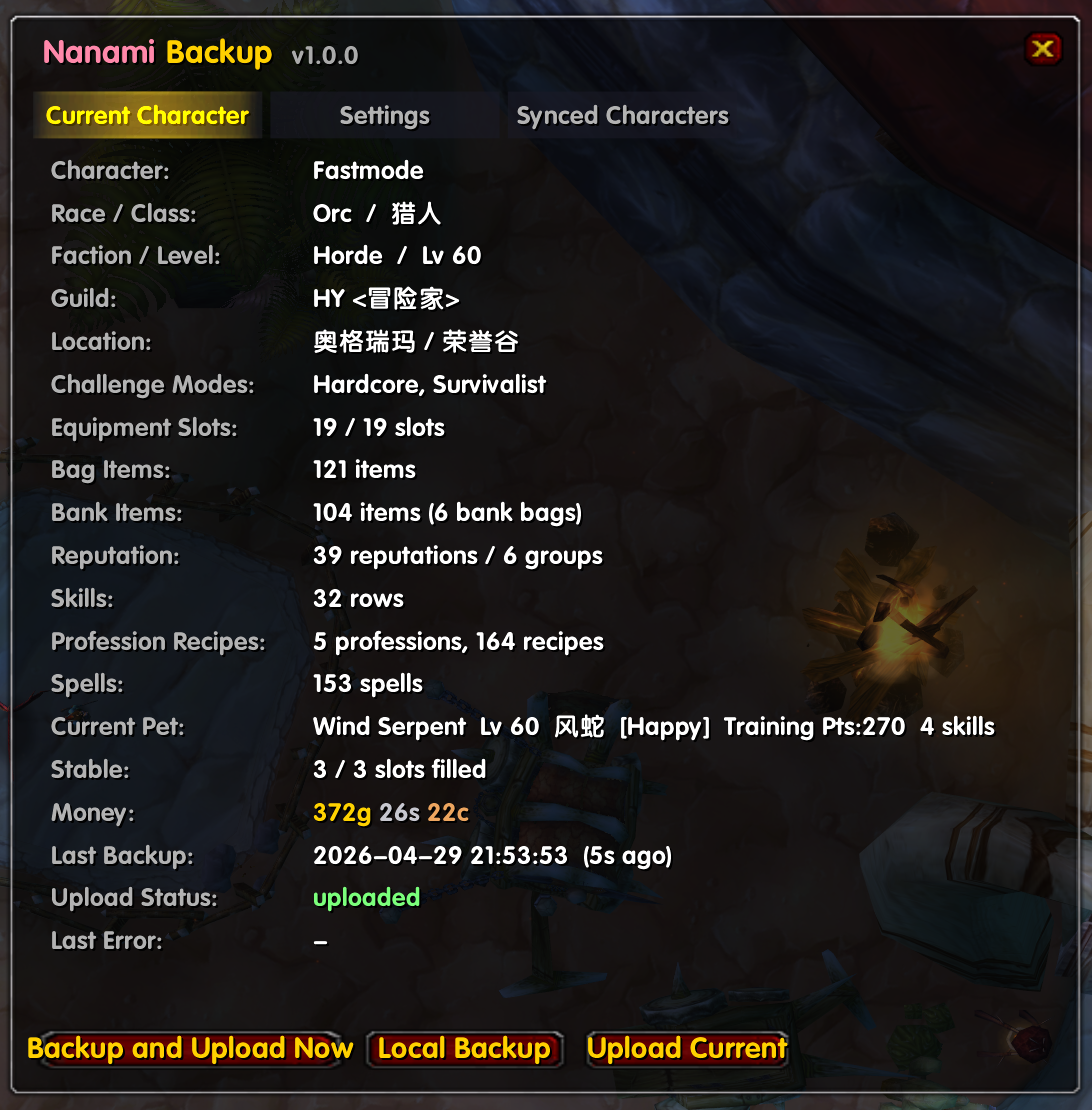
Switch to the "Current Character" tab and review the data the addon has captured (Figure 4).
Open All Professions and Secondary Skills
Open each primary profession and each secondary skill once, so the addon records all skill points and recipes.
Extra Step for Hunters HUNTERS ONLY
Summon your active pet, log out and log back in — repeat until "Current Character" detects the pet. Then open the stable and swap each stabled pet with the active pet in turn, letting the addon record each one.
Trigger the Backup Upload
Opening your bank automatically triggers the upload; you can also click "Backup & Upload Now". When General chat shows a success notice — or the character panel reads "uploaded" at the bottom — the upload is complete. If anything was missed (e.g. a profession), redo that step and click "Upload Current" to amend.
View Backup Records
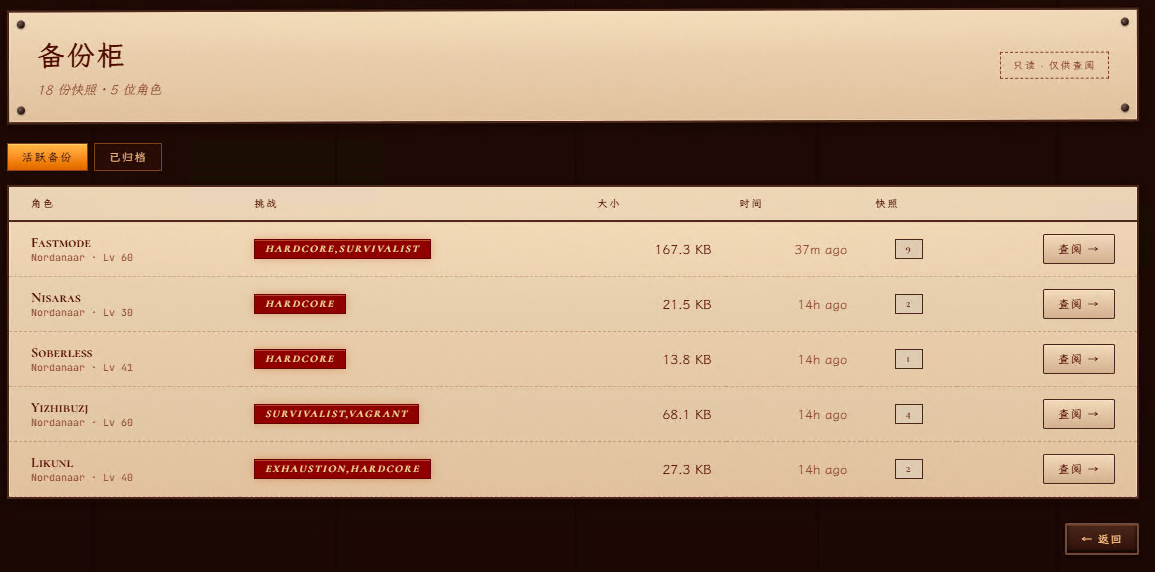
The "My Backups" page lists every backup snapshot under your account (Figure 5).
View Backup Details
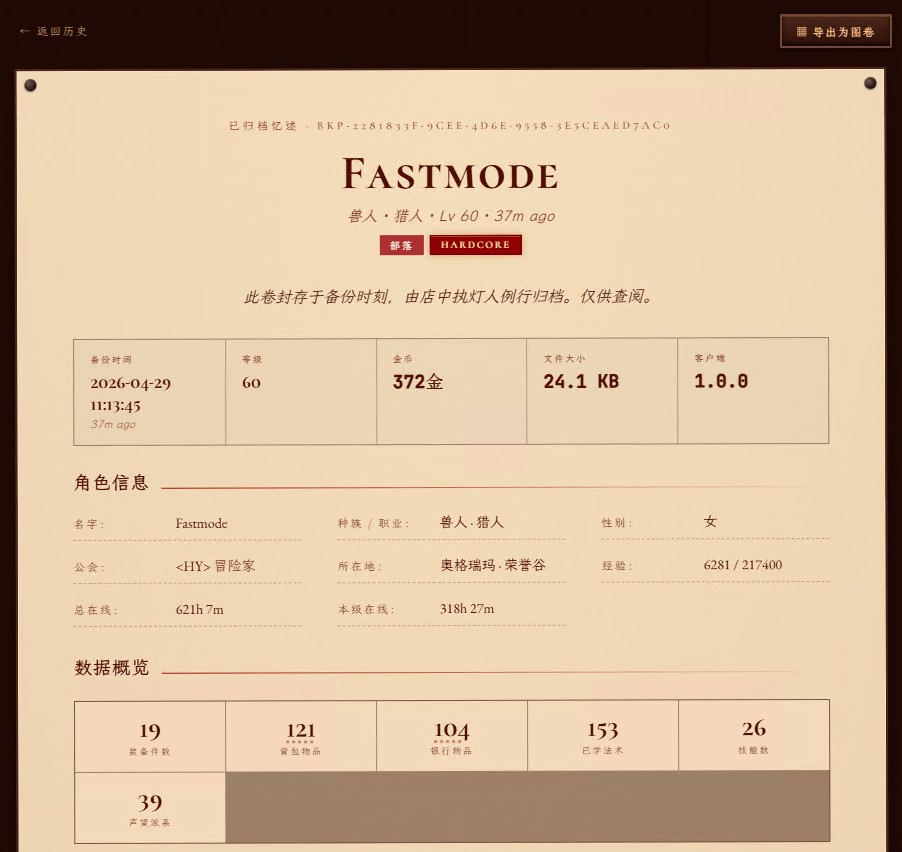
Click "View" on any backup to inspect the character's equipment, professions, skills, reputation, and more (Figure 6).
Upload Deadline & Restoration
After this date, the server will no longer accept character backup uploads. Within the following 3 days, the administrator will complete the restoration of all characters on Nanami. Please stand by — your character will await you.
Some clients crash or error out when opening the Trade Skill (profession) window, which also breaks Nanami-Backup when it tries to read this character's professions. The known workaround is below.
Symptom: when you click on any profession icon (mining, blacksmithing, enchanting, etc.) the whole client freezes, throws a Lua error, or quits straight to the desktop. While this is unresolved, this character's profession data cannot be exported and the backup will be incomplete.
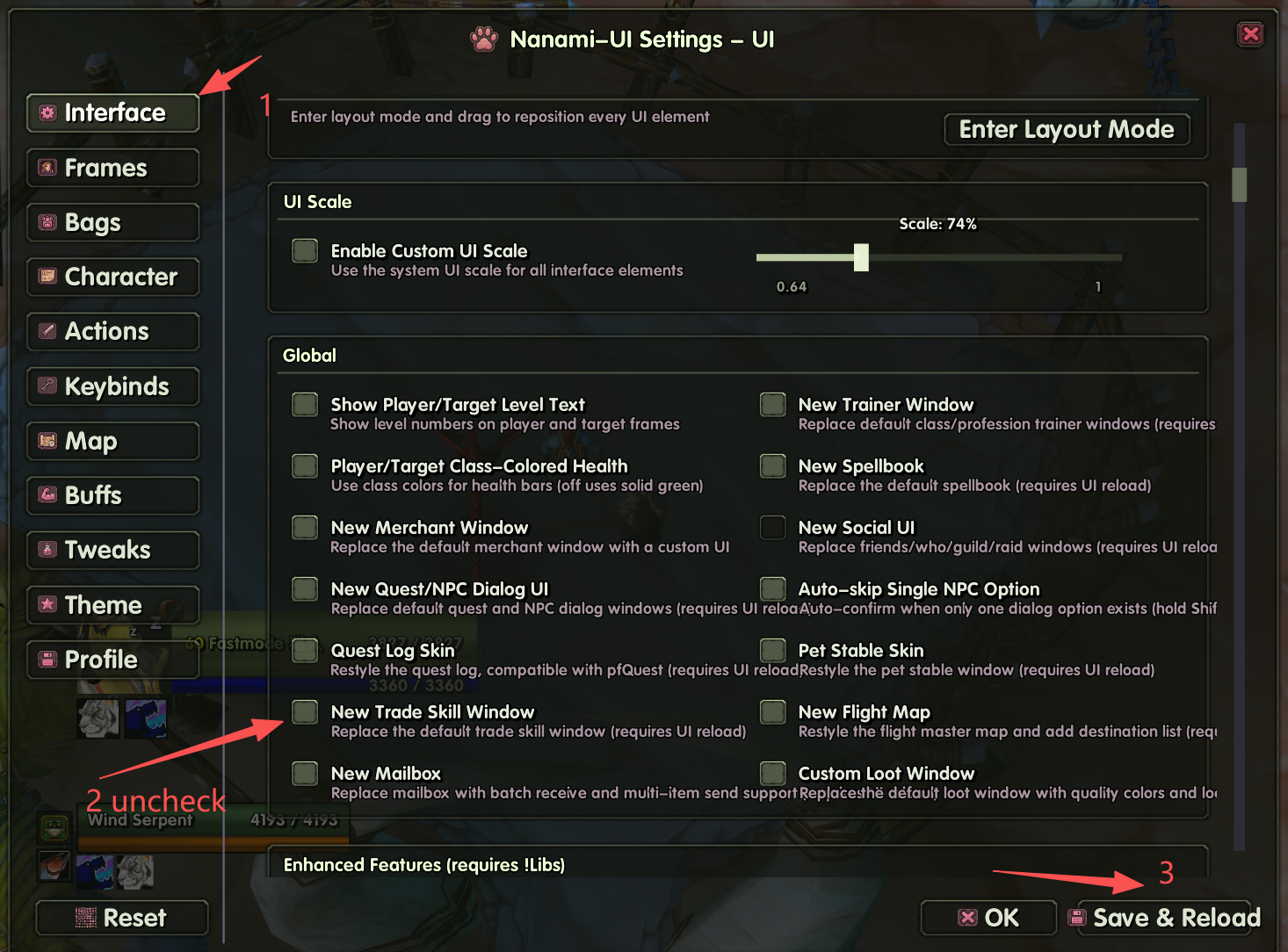
Cause: the "New Trade Skill Window" shipped with Nanami-UI conflicts with some legacy profession frames. Disabling this single toggle reverts to the default Blizzard window and resolves the issue.
- Type
/nanamiin-game or open Nanami-UI Settings from System. - Switch to the Interface tab on the left and scroll down to the Global section.
- Uncheck New Trade Skill Window (启用全新专业技能界面).
- Click Save & Reload at the bottom right and wait for the UI to reload.
- Re-open any profession window to confirm it no longer crashes, then re-run the backup in NBK.
Symptom: after logging into your character, the "NBK" minimap button is missing and you cannot open the backup window directly. This is usually because a dependency addon is unloaded or disabled at some level.
Cause: Nanami-Backup depends on s-translate. AddOn management exists at three levels — launcher, character select screen, and in-game AddOn list — and disabling at any of these prevents the button from appearing.
- Open the Nanami launcher and confirm both
s-translateandNanami-Backupare enabled. - Enter the game to the character select screen, click AddOns at the bottom-left, and confirm both items are checked and not in the "Disable All" state.
- After logging into your character, type
/nbk uito force-open the backup window. If the window pops up, the addon is loaded — the icon is just hidden behind other UI or moved off-screen by a custom layout. - If
/nbk uidoes nothing, the addon failed to load. Quit to the login screen, re-copy thes-translateandNanami-Backupfolders intoInterface/AddOns/(overwriting the existing copies), then restart the client.
- One account may hold up to 10 travellers.
- For characters of the same name, the latest upload prevails.
- Nanami runs on 1.17 — items, pets, and mounts introduced in 1.18 will not appear on restored characters.
- Migration is performed via client-side export + server-side parsing; 100% fidelity is not guaranteed. Quest progress, achievements, action bars, friends, mail, and appearance cannot be migrated; talent points must be reallocated in-game after restoration.
- Nanami is a non-profit private server, free forever. We do not accept donations, payments, or any form of trade. If anyone solicits payment in our name, do not engage.
- Nanami is not affiliated with Blizzard Entertainment or the official Turtle WoW project. The server reserves the right to adjust, suspend, or terminate service at any time; no compensation is provided for any resulting loss of characters, items, or progress.